
Automatically onboard subscriptions with Azure Policy
A lot of organizations manage multiple tenants. This can be the case for managed service providers but also for enterprises. For these cases, you would like to have delegated resource access to be able to manage those tenants.
This delegated resource access can be achieved by setting up Azure Lighthouse.
What is Azure Lighthouse
Azure Lighthouse is a way to enable multitenant management with scalability, higher automation, and enhanced governance across resources. By using Azure Lighthouse, organizations can deliver services via the Azure platform. The main advantage is that the onboarded parties maintain control over who has access to their tenant, which resources they can access, and what actions they can take. As mentioned before, this is very useful in cases where organizations or MSPs have to manage multiple Azure Subscriptions that are located in multiple Entra Tenants.
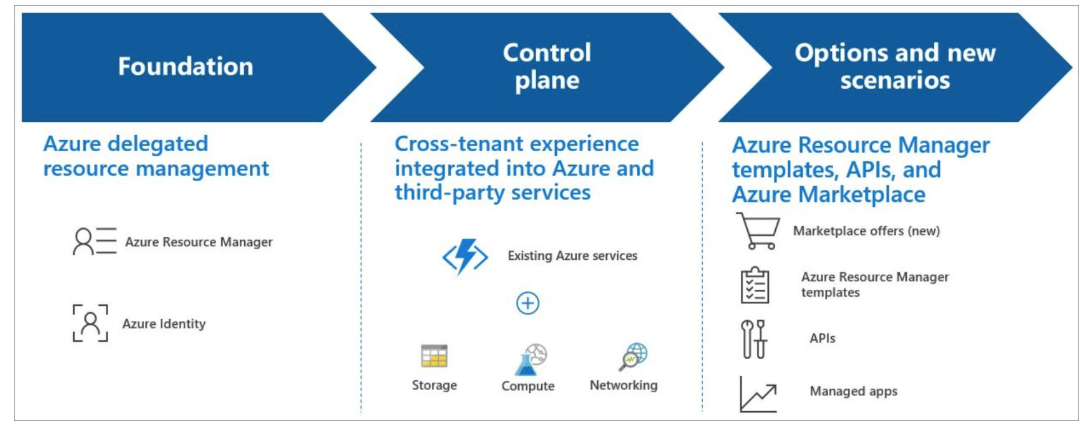
What is possible with Azure Lighthouse
Azure Lighthouse offers you the following capabilities.
- Manage onboarded Azure resources within your own tenant without switching context.
- It offers great insights into the tenants you manage.
- View cross-tenant information within the Azure Lighthouse blade.
- With deployment templates you can perform cross-tenant management tasks.
How does it work
Azure Lighthouse configures permissions and capabilities for resources on a specified level. This can for example be a resource group or an Azure Subscription. This is all done by specifying this within a Template (ARM / Bicep).
To see more about this template you can check out the samples repository for Azure Lighthouse on GitHub.
In the template for an Azure Lighthouse connection, this is done in the following steps:
- Find out which role your identities / groups need to manage Azure resources in the other tenant. This is the role definition id.
- Onboard the resources/tenant by using a template. This could also be possible by using managed applications. This option is mainly used by service providers that sell management capabilities to their customers.
- Once the other tenant is onboarded, the specified identities/group of identities are able to manage the resources.
A lot of information about Azure Lighthouse can be found on Microsoft Learn.
Is there a downside
Every capability normally also has a downside of using it. Personally speaking, one of the downsides I see for Azure Lighthouse is that the scopes that can be onboarded are subscriptions or resource groups. At the moment of writing this article, it isn’t possible to onboard a subscription automatically.
As a company that manages multiple customers (tenants), this can be a pretty tough situation. Normally, you would like to offer customers some kind of flexibility, meaning that you allow them to create Azure Subscriptions. When that is the case, you introduce the problem that you will not be able to manage those subscriptions for your customer.
That is where this article kicks in. There are options to automatically onboard new Azure Subscriptions.
How do I onboard new Azure Subscriptions
You might be asking: how do we then onboard those new subscriptions?
This is where Azure Policy comes in. With Azure Policy, we are able to do deployments in certain specific situations. For this case, the situation would be a subscription that is not delegated for management in our management tenant. By deploying this policy to a Management Group, we make sure that every subscription that gets created and placed in this management group is automatically delegated for management by the other tenant.
With Azure Policy, we can use the ‘deployIfNotExists’ effect to achieve this. If you are interested in using this effect, you can check out this documentation from Microsoft. The effect of the policy checks a specific condition on a resource. If it does not find that condition, it performs a deployment that you specify.
Infrastructure as Code
The way to add the policy to the environment is by using infrastructure as code. In this example, we will use Bicep, but of course other languages such as Terraform can also be used. Adding a Policy to the Azure platform is done in two steps:
- Step 1: Adding the definition of the Azure Policy on a specific scope. The definition basically describes what the policy does and when it performs the specified action. Adding the definition is normally done at the highest possible point in your Azure Hierarchy. This way, you can use the definition in lower parts of the hierarchy.
- Step 2: When the definition is added to the platform, you can make an assignment of the definition on a specific scope. This means basically activating the policy on a specific scope, such as a Management group. When making the assignment, you normally also have to add specific parameters for the policy.
As mentioned, we will be using Bicep. The below snippet represents our main.bicep file.
targetScope = 'managementGroup'

metadata info = {
  title: 'Azure Lighthouse Configuration'
  version: '1.1.0'
  author: 'Maik van der Gaag'
}
metadata description = '''
IaC for the creation of a Azure Lighthouse on customer subscriptions.
'''

@description('The ID of the management group where the policy will be placed.')
param policyScopeId string

@description('The IDs of the Management Group where the assignment will be done for the policy.')
param assignmentScopeIds array

@description('Specify an array of objects, containing tuples of Entra principalId, a Azure roleDefinitionId, and an optional principalIdDisplayName. The roleDefinition specified is granted to the principalId in the provider\'s Entra and the principalIdDisplayName is visible to customers.')
param authorizations array

@description('The customer name used in the description')
param customer string

@description('The location of the Policy Assignment(s)')
param location string

// Default value Parameters
@description('Specify a unique name for your offer')
param mspOfferName string = 'Azure Lighthouse Management'

@description('Name of the Service Provider offering')
param mspOfferDescription string = 'Lighthouse connection between ${customer} and the management tenant'

@description('Specify the tenant id of the Managing party')
param managedByTenantId string

@description('date to append to the deployment name of modules')
param deploymentDate string = utcNow('yyyyMMddTHHmm')

@description('The description in the azure portal for the policy assignment')
param assignmentDescription string = 'This policy assignment deploys azure lighthouse so the managing can get access to the Azure subscriptions'

@description('The Display Name for the policy assignment')
param assignmentDisplayname string = 'Azure Lighthouse Deployment'

@description('The messages that describe why a resource is non-compliant with the policy.')
param nonComplianceMessage string = 'Azure Lighthouse is not configured on this subscription. Please contact your managing party to remediate this issue.'

@description('The name of the policy')
@maxLength(10)
param name string

module policyDefinition '../modules/lighthouse-policy.bicep' = {
  name: 'lighthouse-policy-def-${deploymentDate}'
  scope: managementGroup(policyScopeId)
  params: {
    authorizations: authorizations
    name: name
    managedByTenantId: managedByTenantId
    mspOfferName: mspOfferName
    mspOfferDescription: mspOfferDescription
  }
}

module policyAssignment '../modules/policyassignment.bicep' = [for id in assignmentScopeIds: {
  name: 'lighthouse-policy-assignment-${deploymentDate}'
  scope: managementGroup(id)
  params: {
    name: name
    location: location
    assignmentDescription: assignmentDescription
    assignmentDisplayname: assignmentDisplayname
    nonComplianceMessage: nonComplianceMessage
    policyDefinitionId: policyDefinition.outputs.policyDefinitionId
  }
}]
As you can see in the snippet, it uses two modules. One module for the policy definition and another for the assignment. Let’s go over a few important things about this Bicep file:
- The module ‘policyDefinition’ is deployed first. This makes sure we have the definition available. As you can see in the module specification, it will be deployed to a Management Group.
- The module ‘policyAssignment’ will be deployed second and will make the policy assignment on all management groups that are specified in the ‘assignmentScopeIds’ array.
- The parameter ‘authorizations’ is a specific tuple to specify which authorization will be made within the managing tenant. Take a look at the snippet below as an example. In the tuple, you specify which principal (this can be any type of identity, such as a group, user, or service principal) gets a specific role. The display name is optional and is what can be seen within the managing tenant:
{
  principalIdDisplayName: 'Security - Azure Lighthouse Reader'
  principalId: '91882300-3331-40dc-bc8a-14a665a2fc55'
  roleDefinitionId:  'acdd72a7-3385-48ef-bd42-f606fba81ae7'
}
{
  principalIdDisplayName: 'Security - Azure Lighthouse'
  principalId: '91882300-3331-40dc-bc8a-14a665a2fc55'
  roleDefinitionId: 'cfd33db0-3dd1-45e3-aa9d-cdbdf3b6f24e'
}
The rest of the parameters speak for themselves and also have a decent description. So let’s look into the modules.
Policy
The policy definition is specified in a separate module. This module only deploys the definition on a management group scope based on the parameters that are supplied.
targetScope = 'managementGroup'

metadata info = {
  title: 'Azure Lighthouse Policy'
  version: '1.1.0'
  author: 'Maik van der Gaag'
}

metadata description = '''
Module for the creation of a Azure Lighthouse Policy on customer environments.
'''

@description('The name of the Azure Policy')
param name string

@description('Add the tenant id provided by the MSP')
param managedByTenantId string

@description('the name of the MSP offering')
param mspOfferName string

@description('The description of the managing party offer')
param mspOfferDescription string

@description('Specify an array of objects, containing tuples of principalId, a roleDefinitionId, and an optional principalIdDisplayName. The roleDefinition specified is granted to the principalId in the provider\'s Entra and the principalIdDisplayName is visible to customers.')
param authorizations array

@description('The ID of the Owner Role')
var rbacOwner = '8e3af657-a8ff-443c-a75c-2fe8c4bcb635'

resource policyDefinition 'Microsoft.Authorization/policyDefinitions@2023-04-01' = {
  name: 'def-${name}'
  properties: {
    description: 'Policy to enforce Lighthouse on subscriptions, delegating mgmt to MSP'
    displayName: 'Enforce Lighthouse on subscriptions'
    mode: 'All'
    policyType: 'Custom'
    parameters: {
      managedByTenantId: {
        type: 'string'
        defaultValue: managedByTenantId
        metadata: {
          description: 'Add the tenant id provided by the MSP'
        }
      }
      mspOfferName: {
        type: 'string'
        defaultValue: mspOfferName
        metadata: {
          description: 'Add the tenant name of the provided MSP'
        }
      }
      mspOfferDescription: {
        type: 'string'
        defaultValue: mspOfferDescription
        metadata: {
          description: 'Add the description of the offer provided by the MSP'
        }
      }
      managedByAuthorizations: {
        type: 'array'
        defaultValue: authorizations
        metadata: {
          description: 'Add the authZ array provided by the MSP'
        }
      }
    }
    policyRule: {
      if: {
        allOf: [
          {
            field: 'type'
            equals: 'Microsoft.Resources/subscriptions'
          }
        ]
      }
      then: {
        effect: 'deployIfNotExists'
        details: {
          type: 'Microsoft.ManagedServices/registrationDefinitions'
          deploymentScope: 'Subscription'
          existenceScope: 'Subscription'
          roleDefinitionIds: [
            '/providers/Microsoft.Authorization/roleDefinitions/${rbacOwner}'
          ]
          existenceCondition: {
            allOf: [
              {
                field: 'type'
                equals: 'Microsoft.ManagedServices/registrationDefinitions'
              }
              {
                field: 'Microsoft.ManagedServices/registrationDefinitions/managedByTenantId'
                equals: '[parameters(\'managedByTenantId\')]'
              }
            ]
          }
          deployment: {
            location: 'westeurope'
            properties: {
              mode: 'incremental'
              parameters: {
                managedByTenantId: {
                  value: '[parameters(\'managedByTenantId\')]'
                }
                mspOfferName: {
                  value: '[parameters(\'mspOfferName\')]'
                }
                mspOfferDescription: {
                  value: '[parameters(\'mspOfferDescription\')]'
                }
                managedByAuthorizations: {
                  value: '[parameters(\'managedByAuthorizations\')]'
                }
              }
              template: {
                '$schema': 'https://schema.management.azure.com/2018-05-01/subscriptionDeploymentTemplate.json#'
                contentVersion: '1.0.0.0'
                parameters: {
                  managedByTenantId: {
                    type: 'string'
                  }
                  mspOfferName: {
                    type: 'string'
                  }
                  mspOfferDescription: {
                    type: 'string'
                  }
                  managedByAuthorizations: {
                    type: 'array'
                  }
                }
                variables: {
                  managedByRegistrationName: '[guid(parameters(\'mspOfferName\'))]'
                  managedByAssignmentName: '[guid(parameters(\'mspOfferName\'))]'
                }
                resources: [
                  {
                    type: 'Microsoft.ManagedServices/registrationDefinitions'
                    apiVersion: '2019-06-01'
                    name: '[variables(\'managedByRegistrationName\')]'
                    properties: {
                      registrationDefinitionName: '[parameters(\'mspOfferName\')]'
                      description: '[parameters(\'mspOfferDescription\')]'
                      managedByTenantId: '[parameters(\'managedByTenantId\')]'
                      authorizations: '[parameters(\'managedByAuthorizations\')]'
                    }
                  }
                  {
                    type: 'Microsoft.ManagedServices/registrationAssignments'
                    apiVersion: '2019-06-01'
                    name: '[variables(\'managedByAssignmentName\')]'
                    dependsOn: [
                      '[resourceId(\'Microsoft.ManagedServices/registrationDefinitions/\', variables(\'managedByRegistrationName\'))]'
                    ]
                    properties: {
                      registrationDefinitionId: '[resourceId(\'Microsoft.ManagedServices/registrationDefinitions/\',variables(\'managedByRegistrationName\'))]'
                    }
                  }
                ]
              }
            }
          }
        }
      }
    }
  }
}

output mspOfferName string = 'Managed by ${mspOfferName}'
output authorizations array = authorizations
output policyDefinitionId string = policyDefinition.id
In the code above, the policy definition is constructed where you can see that it has the ‘deployIfNotExist’ effect when a subscription does not have the managedByTenantId specified. The fact that it works for a subscription is set in the If condition of the policy.
Within the ‘deployment’ part of the policy, the ARM template is specified that will be deployed when the condition is not met. This means that it will deploy the Lighthouse connection to the subscription.
This module outputs the policyDefinitionId after the creation of the definition. This output value can then be used for the assignment of the policy.
Assignment
The next part to get this solution operational is the assignment. As mentioned in this article, this is the other module.
targetScope = 'managementGroup'

metadata info = {
  title: 'Azure Policy Assignment'
  description: 'Module for creating policy assignments'
  version: '1.1.0'
  author: 'Maik van der Gaag'
}

metadata description = '''
Module for creating policy assignments
'''

@maxLength(10)
@description('The name of the policyassignment')
param name string

@description('The description in the azure portal for the policy assignment')
param assignmentDescription string

@description('The location of the resources')
param location string

@description('The Display Name for the policy assignment')
param assignmentDisplayname string

@allowed([
  'Default'
  'DoNotEnforce'
])
@description('The enforcement mode of the assignment, default is Default so the policy will get enforced. (default,DoNotEnforce )')
param enforcementMode string = 'Default'

@description('The messages that describe why a resource is non-compliant with the policy.')
param nonComplianceMessage string

@description('The ID of the policy definition or policy set definition being assigned.')
param policyDefinitionId string

@description('The ID of the Role that will be given to the managed identity')
param roleDefinitionId string = '8e3af657-a8ff-443c-a75c-2fe8c4bcb635'

@description('Deploy with identity')
param identity bool = false

@description('The list of resource IDs to be excluded from the policy assignment.')
param exclusions array = []

var identityValue = {
  type: 'SystemAssigned'
}

resource policyassignment 'Microsoft.Authorization/policyAssignments@2025-11-01' = {
  name: 'assignment-${name}'
  location: location
  identity: identityValue
  properties: {
    description: assignmentDescription
    displayName: assignmentDisplayname
    enforcementMode: enforcementMode
    nonComplianceMessages: [
      {
        message: nonComplianceMessage
      }
    ]
    policyDefinitionId: policyDefinitionId
    notScopes: exclusions
  }
}

resource roleDefinition 'Microsoft.Authorization/roleDefinitions@2022-04-01' existing = if (identity) {
  name: roleDefinitionId
}

resource roleassignment 'Microsoft.Authorization/roleAssignments@2022-04-01' = if (identity) {
  name: guid('policyassignment', policyassignment.name, roleDefinitionId)
  properties: {
    principalId: policyassignment.identity.principalId
    principalType: 'ServicePrincipal'
    roleDefinitionId: roleDefinition.id
  }
}

output policyAssignmentIdentityId string = policyassignment.identity.principalId
This module is not specific for setting up Lighthouse but can be used for assigning policies in general to the management scope in Azure. A few things to note here are:
- The assignment can use an Identity. When it uses an Identity, it will use the SystemAssigned identity type. The role it needs is specified in the roleDefinitionId parameter.
- The policy that it will assign is specified in the parameter policyDefinitionId, and it will be assigned at the scope where this module is executed.
Conclusion
Managing Azure resources within multiple tenants is a challenging task. Using Azure Lighthouse simplifies this job in several ways. By using the solution described in this post, it may help you in situations where you are unsure if additional subscriptions will be added to the environment and where you do not want to lose control.
This way, you only have to onboard a tenant once and subscriptions will turn up when they are added.
Comments