
A Festive Tale - The Mystery of Hidden Tags
In the world of cloud management, every detail matters—but what happens when a crucial tag goes missing? Azure Tags are designed to bring order and clarity, yet sometimes they vanish into the shadows, leaving teams puzzled. This article uncovers the secrets behind hidden tags, why they matter, and how to ensure they never slip through the cracks.
It might not be the exact scenario, but it certainly sounds like an intriguing story. Before diving into the mystery, let’s start by exploring what Azure Tags are.
Tags in the Azure platform are key-value pairs that let you store descriptive information about your resources. For example, when deploying resources to Azure, you may want to save the resource owner.
If you check the snippet below, you’ll see that we add specific tags to a resource, such as owner, environment, purpose, version, and clean. This small snippet shows how this could be done via Bicep, but as you know, it is also possible through the Azure portal.
@description('Solutions to add to workspace')
param solutions array = []

@description('Tags to apply to the resource')
param tags object = {
  owner: 'maikvandergaag'
  environment: env
  purpose: 'monitoring'
  version: '1.0.0'
  clean: 'false'
}

resource logAnalyticsWorkspace 'Microsoft.OperationalInsights/workspaces@2025-02-01' = {
  name: 'la-${name}-${env}'
  location: location
  tags: tags
  properties: {
    sku: {
      name: sku
    }
    retentionInDays: retentionInDays
  }
}
Tags that you want to apply can be applied to Azure resources, resource groups, and subscriptions. Management groups are not supported.
If you are looking for a strategy on how to deal with tagging, make sure to check out this article.
Managing tags in large environments manually can become quite intensive. That is why there is support for Azure Policies. With the help of Azure Policies, you can overcome most of the hassles. For example by using policies the eco system can help you with:
- Inheriting tags from the resource group for the resources in the group.
- Automatically adding tags to resource groups or resources.
- Making sure that supported resources have a tag assigned.
Information about the tagging policies can be found here
Hidden Tags
Now to the mystery of this festive tale. As you may know, all tags you add to Azure via the API, PowerShell, Bicep, or the Portal are displayed in the web interface.

Try creating a new tag in the portal and prefix it with ‘hidden-‘. The tag will be made, but as the mystery reveals, it disappears from the portal.
With this capability, you can build tag-based automations and features that rely on tags but do not want to display those values in plain sight, so people are less likely to change them. You could use this in scenarios like:
- Automation for starting and stopping VMs
- Cost analysis based on specific tag data
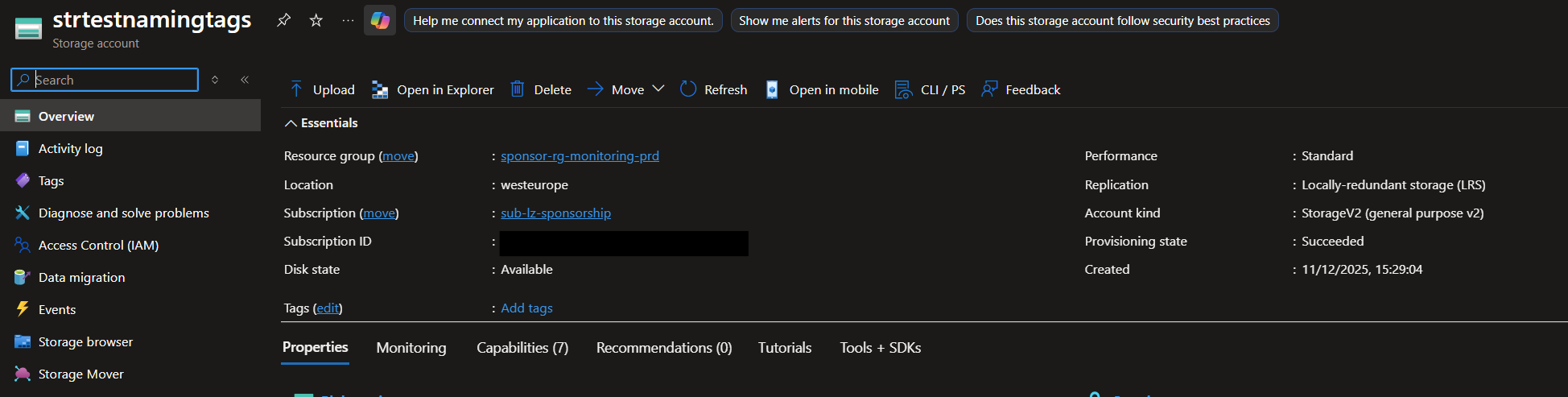
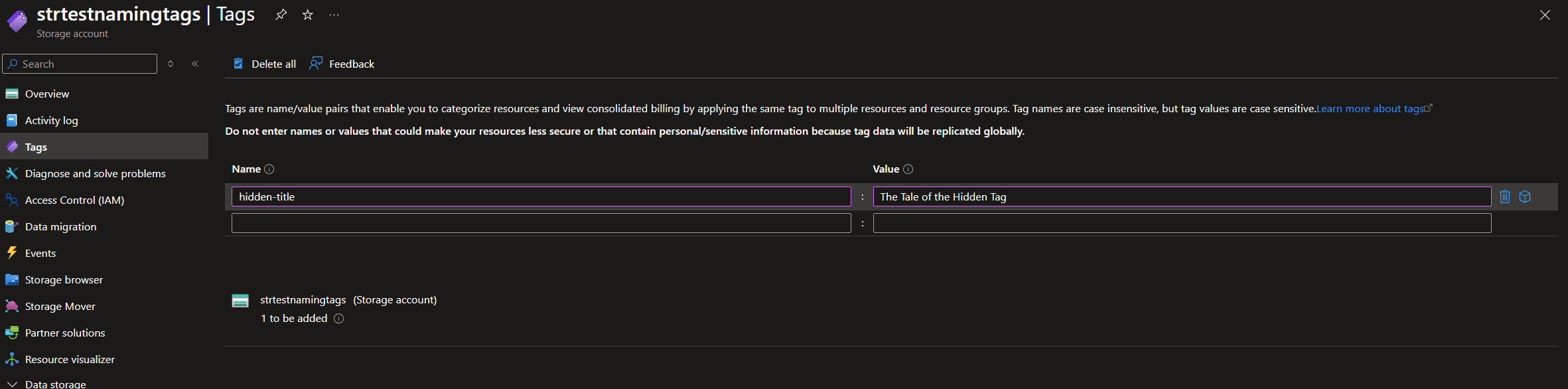
Azure uses hidden tags itself, and for some people, this function remains a mystery. For example, add a tag called ‘hidden-title’ to a specific resource and see what happens. The screenshots below show you what happened in my environment:
Before
During
After
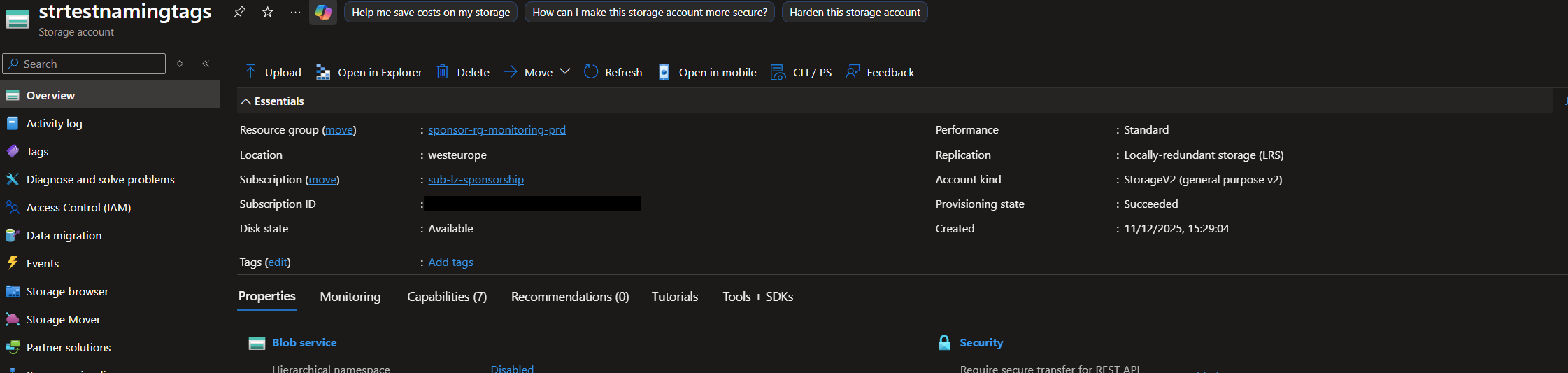
Notice that basically nothing changed. We added the tag, and it isn’t displayed. But now move to the resources list view, for example, the resource group in which you created the tag for the resource.
Resource List
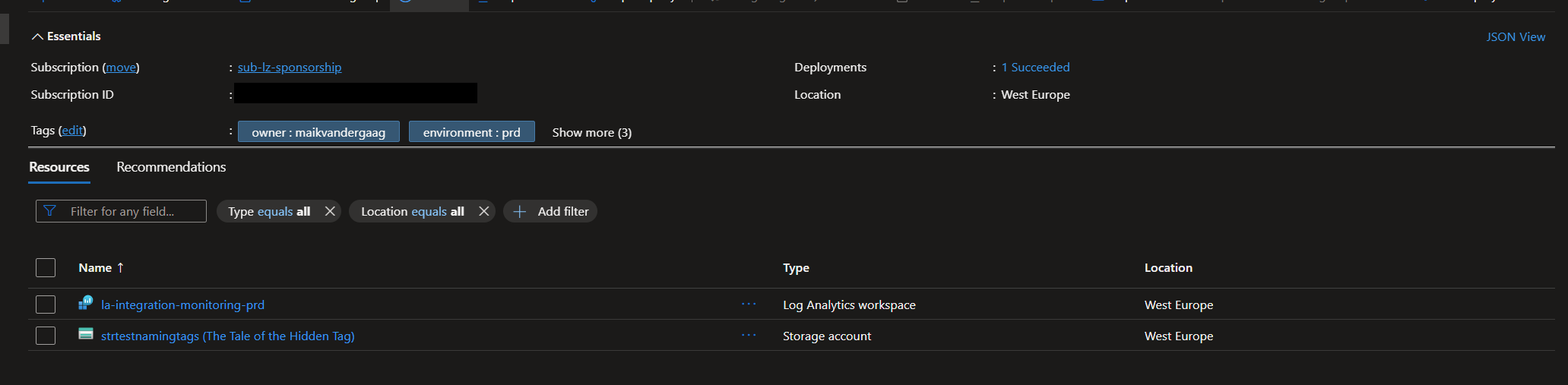
The title now appears in the resources list and lets you add a descriptive title to all your resources.
Automation
The default Get-AzTag and Remove-AzTag do not retrieve the tags; how can you then use them in automation?
Using hidden tags for automation is done with the Get-AzResource command.
The snippet below, for example, gets all resources that have a tag ‘hidden-title’
Get-AzResource -TagName 'hidden-title'
Removing the hidden tag
As you must have noticed in the portal, there is no way to delete the tag. But for the hidden title tag, you can remove the title by adding the same tag name with an empty value.
In this case, the added title will disappear, but the tag itself will remain.
To delete the tags completely, you need to use PowerShell or the Azure CLI. The example below shows how to delete the hidden tag using PowerShell.
$removeTags = @{"hidden-title"=""}
Update-AzTag -ResourceId $resource.id -Tag $removeTags -Operation Delete
Conclusion
Tags are a handy option for saving additional data with your resources. Using hidden tags can be effective, but it’s essential to know that further work is required to keep your environment clean and up to date.
Comments